Save Column Width in SharePoint Online List or Library
Posted: December 29, 2024 Filed under: SharePoint Online | Tags: Column, microsoft, sharepoint, SharePoint Online, Views, Width Leave a comment
Too Much in a Small Space
The Question
Hey Tamara,
How do I save my column width after I make a change? The changes I make are just not sticking!
Respectfully,
A Frustrated SharePoint User
The Answer
Great question Frustrated SharePoint User.
I have also experienced this issue and the answer was right in front of my face. SAVE YOUR CHANGES TO THE VIEW. Use the steps below to make it happen.
Step One: Change your column width by dragging
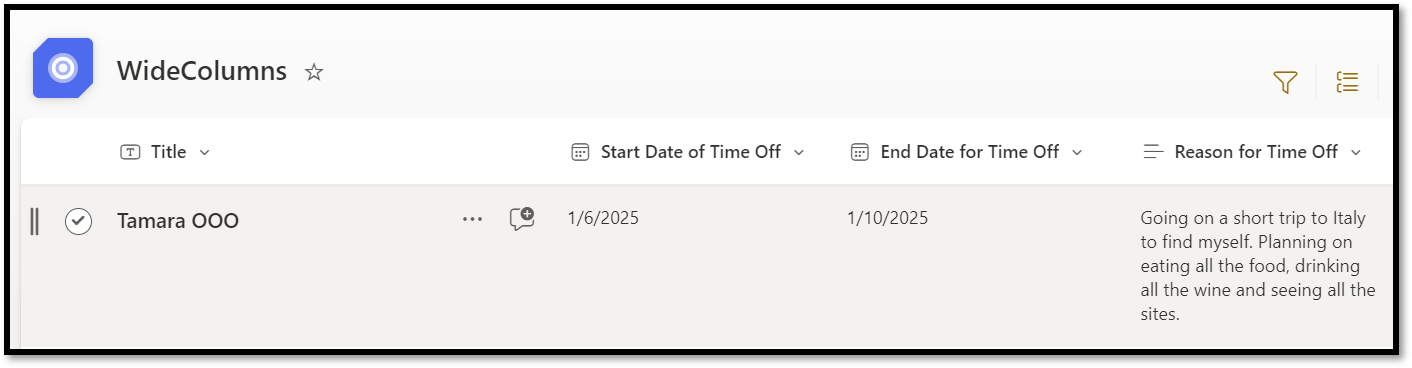
Make your column width wider or more narrow by dragging the column divider where you want it.

Step Two: Save your changes to the view
Save the changes to the view, but do NOT change the view name…unless you want too. Click on the chevron to the right of your view name. From the drop-down, choose Save view as.

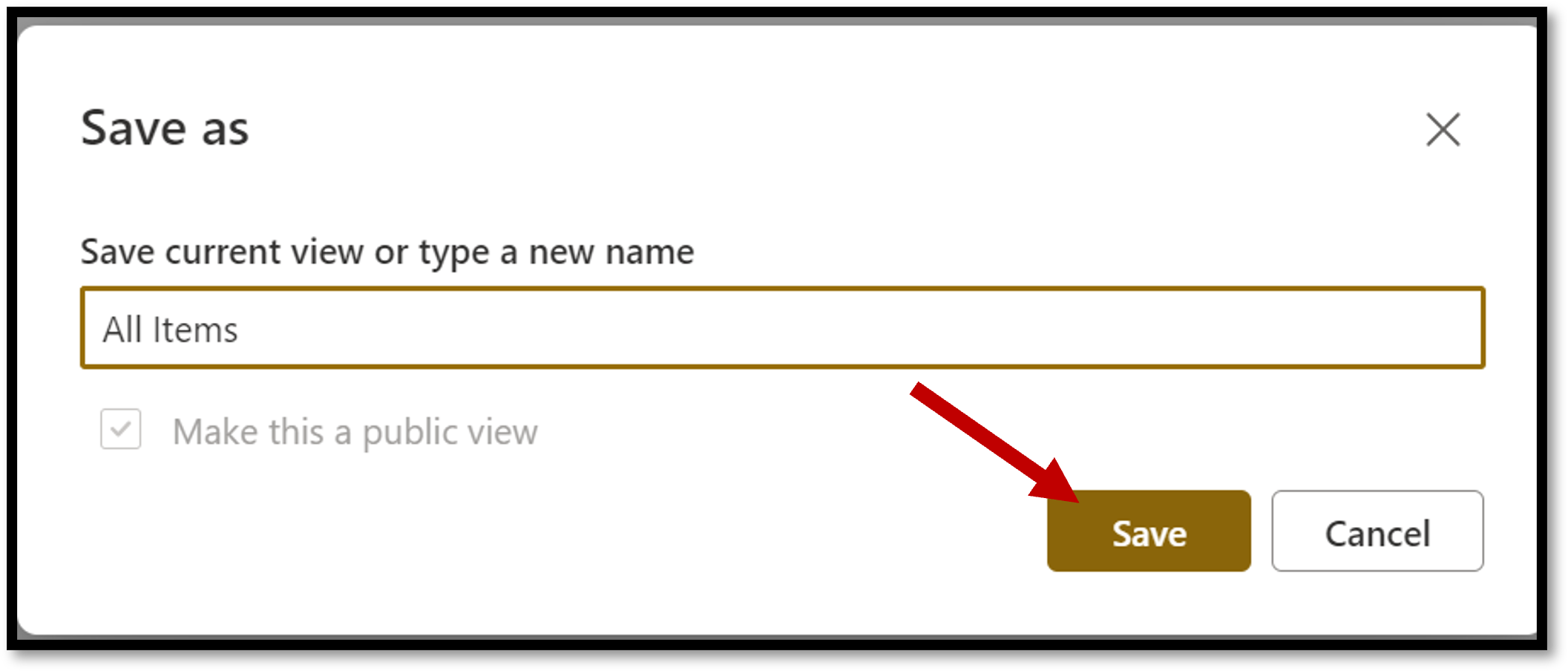
The Save as window will open up. Just click the Save button in the lower right of the window.
Step Three: Check your work
Navigate to a different page, list, or library. Now navigate back to your list. LOOK AT THAT! Your column width changes have been saved.
Sharing in OneDrive Not Under Your Control
Posted: August 2, 2022 Filed under: OneDrive | Tags: OneDrive, Permission, Sharing 6 Comments
You would think that when you select Share with specific people in OneDrive you are only giving access to the person whose email address you have entered.
NOPE.
If you grant that user Edit permissions to the document, that user can then share that document with others without you even knowing.
If, on the other hand, you grant a user View access to the document and the user tries to share it with another person, you are notified by email to Accept or Decline the request.
Just thought you should be aware.
Microsoft Can Bring Us Together
Posted: August 1, 2022 Filed under: Uncategorized 2 Comments
I met my now husband at the Ignite 2015 Conference in Chicago. We shared a table at lunch with some other SharePoint junkies. He was married to someone else at the time, so he went straight to the Friends Zone. We stayed in touch over social media, asking each other for advice and tips on our respective SharePoint journies.
Flashforward to 2017, Tom announced in June that he was getting a divorce. In October of the same year we held a SharePoint Saturday Twin Cities event. He was a speaker from Portland, OR. I was one of the organizers from the Twin Cities. I offered to let him stay in the guest room for the event. We spent all of our waking time together.
He then flew out for a visit for Thanksgiving and met the family.
Again for Christmas.
I flew to Portland, OR, for Valentine’s Day.
By the end of May 2018, we were moving in together. Now we talk SharePoint, Teams, and OneDrive all the time.
We decided to get married in May of 2021, but were thwarted by COVID-19. Pushed the wedding out a year to May 22, 2022.
It was worth the wait.
Thank you Microsoft to bringing two SharePoint junkies together in technology and in love.
Update: We are now 3.5 years into this wild ride called marriage and still loving every minute of it.
Can’t Delete a List Calendar View in SharePoint Online
Posted: January 18, 2022 Filed under: Uncategorized | Tags: SharePoint Online, Views 3 Comments
Hey Tamara, Why can’t I delete the Calendar view I created in my SharePoint Online list? To delete any other view all I need to do is select Edit current view from the view drop-down and hit the delete button on the next screen. I don’t get that option when I try to edit the Calendar view. HELP!
Whew! That sounds frustrating. You are right in that the delete option is not available from the Edit current view selection. The Edit the current view option for the Calendar view looks like this.

Not a delete button in sight.
Don’t panic.
You can still delete the Calendar view the old-fashioned way.
- Go to the list with the Calendar view.
- Click on the cog in the upper right corner.
- Select List settings.
- On the List settings page, scroll down to the bottom where the views are listed.
- Click on your Calendar view.
- Now you will see the Delete button. Click the Delete button and the view is deleted.
Remember, deleted views do NOT go into the Recycle bin.
Invalid look-up value error message when trying to upload Visio or other files to SharePoint
Posted: May 26, 2015 Filed under: 2010, 2013, ECM, Metadata, SharePoint | Tags: Metadata, Upload Issues Leave a commentRan into an issue the other day. A user was getting an error message when he tried to upload some Visio diagrams.

The strange thing was some of the Visio diagrams uploaded to the SharePoint Online site without any issues.
After searching the internet for the error message I ran across Vaikun Rajanihanth’s post from 2012 Invalid lookup value. The author correctly identifies the issue as the file was down loaded from another SharePoint site before the user tried to upload it to the current SharePoint site. The file still maintained the metadata from the first SharePoint site which caused the conflict while uploading the file to its new SharePoint location. The author details how to resolve the issue for a Word file, but the solution could not be applied to the Visio diagram because “Check for Issues” does not appear in the Info or Backstage view of the Visio file.
To remove the prior SharePoint metadata from the Visio file take the following steps…
- Right click on the file name and select Properties from the drop-down menu.

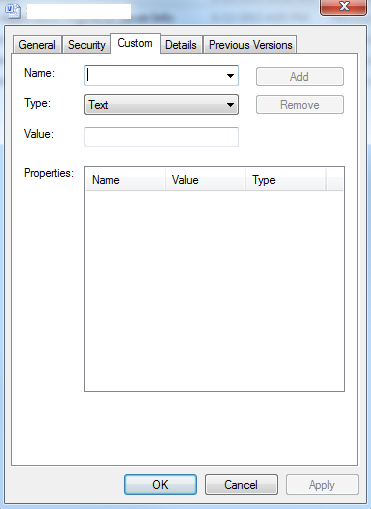
- In the Properties widow, click the Custom tab.
- If there are no values in the Properties field, this is not the fix you need.
- If you do see values in the Properties field, you are on the right path.
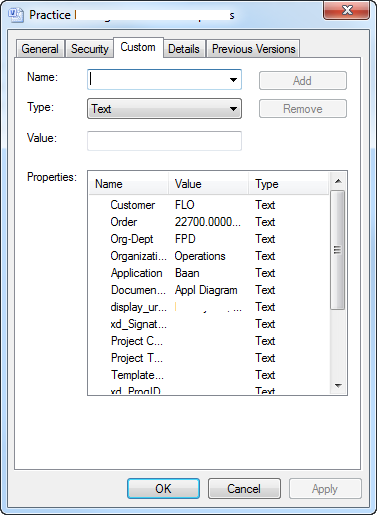
- To remove the Properties, select the first Property and then click Remove.
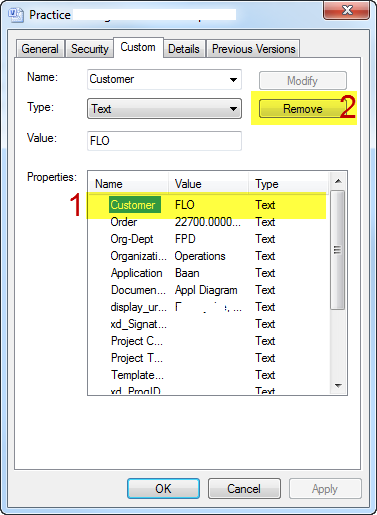
- Repeat this process until all Properties are removed.
- Click OK.
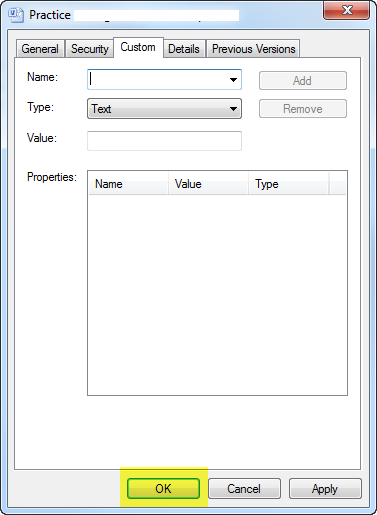
- You may now upload the file to your new SharePoint location without any issues.
Build Your Own Fantasy SharePoint Team
Posted: September 2, 2014 Filed under: 2013, SharePoint, Team Leave a comment
Everyone is excited about their new Fantasy Football Teams and Leagues here in the United States. A lot of deliberation and planning go into selecting members of your team. Hours even days are spent pouring over players’ stats and skills before making the final choices.
What about our Fantasy SharePoint Teams? Imagine if you could build your dream team from the ground up.
- What stats and skills would you pull onto the team?
- Would you define roles and the skills needed to fulfill those roles OR would you define the skills and then define the roles based on the people with the various skills?
- Would those skills be different if it was SharePoint Online, On Premises or Hybrid?
- Would personality traits enter into the equation? If so what would they be?
Here’s a couple I think are needed regardless if you go old fashioned roles based or skills based.
- Know and understand the tools available in the browser to prevent over development. Exam 77-419
- Information Architecture / Library Science background
- Search Engine Optimization
- Keyword Query Language
- Understand how SharePoint interacts with other Office Applications.
- Create Search Results templates for SharePoint 2013
- Know and understand SharePoint Designer Workflows, …
- Can work in one or more of the following languages:
- HTML5
- CSS3
- Net
- XML
- Understand and can make use of the client-side object model and REST APIs.
It’s only a start.
Add your skills list to the comments below.
Is SharePoint Social Dead?
Posted: March 13, 2014 Filed under: 2013, Social | Tags: Office Graphs, Oslo Leave a comment Yep.
Yep.
Just like everything else at the Microsoft SharePoint Conference 2014 (SPC14), SharePoint Social is being pushed into Heaven or Hell depending on your point of view. In fact it’s being pushed so hard it got pushed right out SharePoint and into Yammer and new apps.
Basically we are talking about no updates or enhancements to on-premises SharePoint Social.
According to Jared Spataro, the General Manager of Enterprise Social at Microsoft, “… SharePoint 2013 Service Pack 1 (SP1), …makes it easy to connect an on-premises SharePoint deployment with an in-the-cloud Yammer network.” (Work like a network! Enterprise social and the future of work blog post)
DON’T PANIC!
Take a look at some of the new apps that make this loss more palatable:
- Office Graph – Not just an org chart. Office Graph shows how you are working with people in the organization. Meetings you’ve both attended, documents you’ve worked on together and discussions you’ve shared are all incorporated into the relationship model. Office Graph serves up your connections instead of you having to search for your connections.
- Oslo (codename) – I hate to say it, but it makes me think of Pinterest for Business. With so much information out there users are depending on images, context and search to find what they need to get the job done. Oslo takes care of the search and presents the information in a graphical format. Think of it as dynamic personal navigation.
- Yammer Group Experience – You’ll need O365 for this one. When you create a group anywhere in O365 you will get a group inbox, discussion, Outlook web apps calendar and a SharePoint document library. That’s a lot of Office Apps seamlessly integrated to get the job done.
What does this mean for you?
- Start considering a hybrid solution. Remember your organization’s Yammer environment can be locked down as tight as you’d like, but it’s still in the Cloud.
- If you started using SharePoint Social features, stick with what you’ve got, but start planning for a change.
- Don’t panic. SharePoint Social isn’t going away…at least not today.
Don’t Use the F Word When Describing Enterprise Social
Posted: March 11, 2014 Filed under: Business Analyst, SharePoint, Social | Tags: Yammer Leave a comment NEVER use the word Facebook to describe enterprise social.
“People will be able to connect instantaneously, just like Facebook.”
“Our employees will be able to have conversations regardless of time of day or location, just like Facebook.”
That F word drives fear of a productivity black hole into the hearts of the CEO, CIO, CFO and most others on the leadership team in your organization. Some of them may have already been on Facebook. Your leadership team is already aware that Facebook can easily suck an hour or two out of your day. That isn’t productive, unless your company specializes in videos of people doing stupid things or produces cute pictures of cats doing stupid things.
If you want to sell enterprise social to the CEO, CIO, CFO or anyone else for that matter, show them how it will save time.
Do contracts take forever to review because you are doing it through email? How much turnaround time could be saved by having the discussion all in one place? Posting links to similar contracts within the conversation? Not only will it shorten the turnaround time for contracts, it will free up your sales team’s time to build more relationships with your clients.
Now we have another F word.
Fabulous!
No Time for Questions After the Town Hall Meeting? YamJam.
Posted: March 5, 2014 Filed under: Social | Tags: YamJam, Yammer Leave a comment The CIO just finished the yearly Town Hall Meeting, but ran out of time to answer all those pressing questions from employees. Now what?
YamJam with Yammer.
Set up an hour or so long session on Yammer after the Town Hall Meeting for the CIO to answer questions from the crowd. Employees feel more satisfied with a meeting if their questions get answered.
Be candid. If you’re not, no one will listen.
If your CIO is a troglodyte, don’t panic.
“If your leaders can talk, they can YamJam. Bonus if they can type.” – Melanie Hohertz, Cargill
ECM is Going Social in SharePoint and Beyond
Posted: March 4, 2014 Filed under: ECM | Tags: ECM, File Plan, Retention Leave a comment Documents aren’t the only thing in an organization that need to be managed to mitigate risk and increase employee efficiencies. Videos, meeting recordings, blog posts, microblogs and activity feeds are all part of your enterprise content.
These frequently missed file types have now earned a place in your file plan and retention policies.
When a judge want to see all the information pertaining to a case, he or she isn’t interested in the easy to find documents, he or she wants all the INFORMATION your organization has retained regarding the issue at hand.
“Sorry, we don’t have a way to get that information to you” is not a viable excuse.
Writing a check for huge fines doesn’t make anyone happy.
My favorite quote from the KnowlegeLake User Conference on March 2nd, 2014 was from Pamela Doyle, Director or Fujitsu Computer Products of America, “Not managing your content is like driving a car 85 miles per hour in a school zone because you can pay the ticket. Obviously you haven’t considered any of the other possible ramifications”
 Hey Tamara!