Save Column Width in SharePoint Online List or Library
Posted: December 29, 2024 Filed under: SharePoint Online | Tags: Column, microsoft, sharepoint, SharePoint Online, Views, Width Leave a comment
Too Much in a Small Space
The Question
Hey Tamara,
How do I save my column width after I make a change? The changes I make are just not sticking!
Respectfully,
A Frustrated SharePoint User
The Answer
Great question Frustrated SharePoint User.
I have also experienced this issue and the answer was right in front of my face. SAVE YOUR CHANGES TO THE VIEW. Use the steps below to make it happen.
Step One: Change your column width by dragging
Make your column width wider or more narrow by dragging the column divider where you want it.

Step Two: Save your changes to the view
Save the changes to the view, but do NOT change the view name…unless you want too. Click on the chevron to the right of your view name. From the drop-down, choose Save view as.

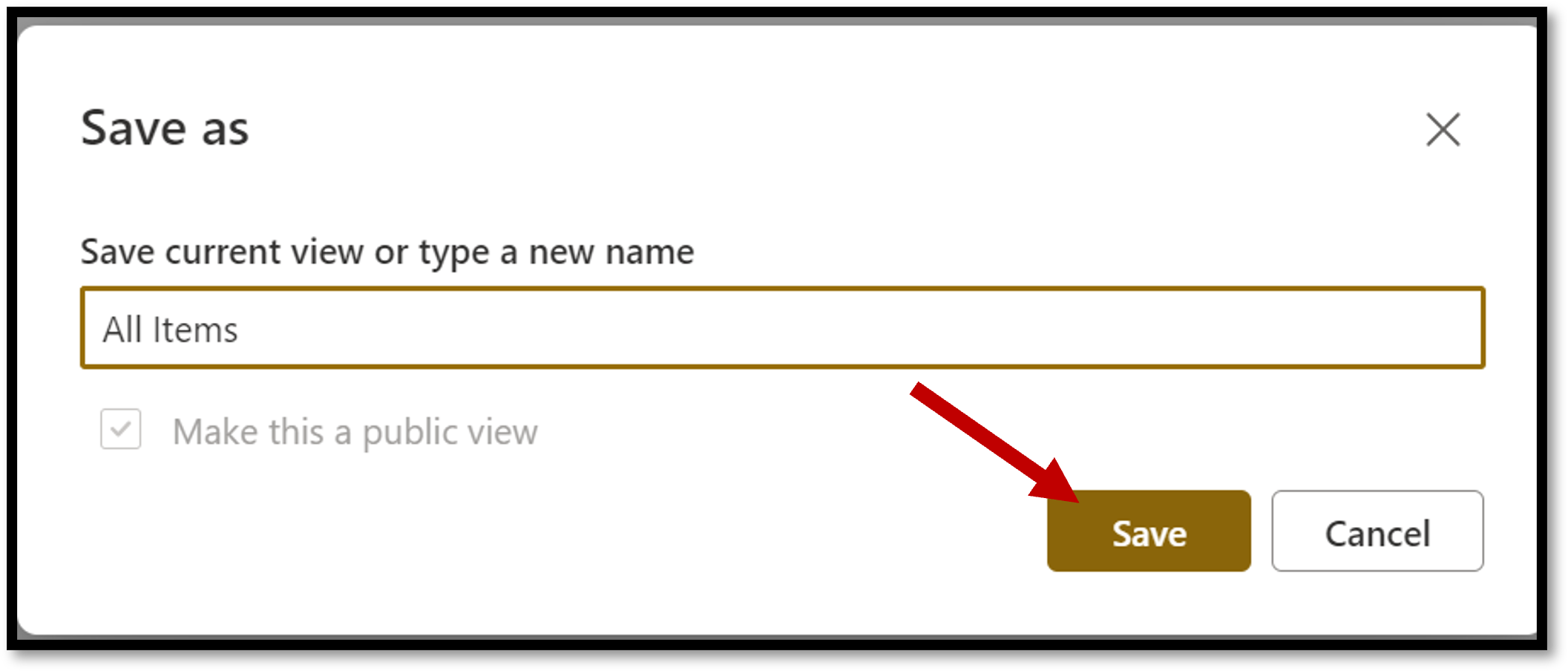
The Save as window will open up. Just click the Save button in the lower right of the window.
Step Three: Check your work
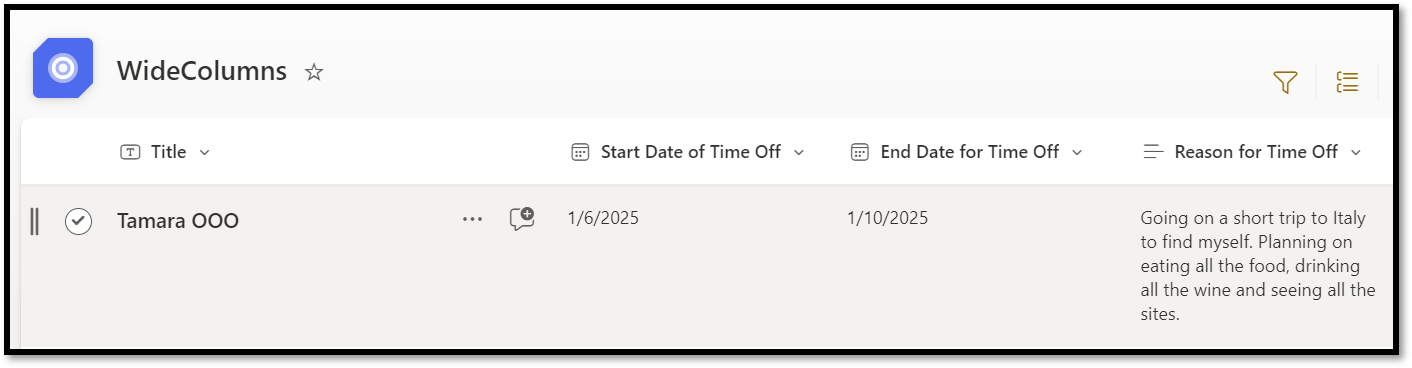
Navigate to a different page, list, or library. Now navigate back to your list. LOOK AT THAT! Your column width changes have been saved.
 Hey Tamara!